
Microsoft Copilot
Microsoft CorporationProductivity
4.729.95K Reviews
- Version
- 30.0.440120001
- Installs
- 50.00M
- Age Rating
- Everyone
Screenshots







Our Review of Microsoft Copilot
 Analysis by Appyee
I found that the biggest hurdle with Microsoft Copilot is not learning to type a request; it is learning how to ask for the kind of help you actually need. A broad prompt such as “help with work” leaves too much room for guesswork. I get more useful results when I name the task, give the relevant context, and say what shape the answer should take. For example, asking for a short summary with decisions and open questions is easier to assess than asking for a general summary.
That distinction matters because an AI assistant can sound confident even when a suggestion is not quite right. I treat its output as a draft or a starting point, not as a checked fact. For an email, that may mean correcting the tone and confirming names or dates; for a document summary, it means checking the original before relying on an important detail. This small review step is part of using Copilot well, rather than a sign that the app has failed.
Start with one clear task
If you are new to the app, I would avoid trying to explore every possibility at once. Pick a familiar, low-stakes job: rephrase a paragraph, sketch an outline, or turn a set of notes into a few readable bullet points. Then compare the result with what you would have written yourself. That gives you a realistic feel for where the assistant saves time and where you still need to steer it.
When a response misses the point, I find it more productive to refine the request than to repeat it unchanged. Specify the audience, the intended tone, or the amount of detail you want. If the answer is too long, ask for a tighter version; if it sounds stiff, explain that you want plain, conversational wording. The useful habit is to make one adjustment at a time, so you can see which instruction changes the result.
Check your routine before blaming the app
Some frustrating moments come from the surrounding task rather than from Copilot itself. A vague request, incomplete source material, or a document that does not contain the detail you expect can all lead to a disappointing answer. I first check whether I gave the assistant enough context and whether I am asking it to infer something that should instead be verified in the original material.
I also separate a writing problem from a workflow problem. If I am drafting an email, Copilot can help me shape the wording, but I still need to decide whether the message is appropriate and whether it says what I mean. If I am working with figures, a suggested formula or interpretation deserves a check against the spreadsheet. Keeping that boundary clear helps me use the app as a practical helper without handing over decisions that need my judgement.
Hey there! So, I recently took Microsoft Copilot for a spin, and I’ve got to say, it’s quite the game-changer. If you’re anything like me, juggling multiple tasks and needing a bit of a digital assistant to keep things in check, this app might just be your new best friend.
Your New AI Buddy
Imagine having a co-pilot for all your digital ventures. That’s exactly what Microsoft Copilot offers. It’s designed to integrate seamlessly into your workflow, providing suggestions, insights, and even doing some of the heavy lifting for you. I found it particularly handy when working on documents and emails. The app predicts what you might want to do next, which makes multitasking a breeze.
Features That Stand Out
First off, the integration with Microsoft 365 is a lifesaver. If you’re already using Word, Excel, or Outlook, the transition is smooth as butter. Copilot slides right into these apps, offering suggestions that are eerily on point. For instance, while drafting an email, Copilot suggested some responses that I hadn’t even thought of. It’s like having a brainstorming partner right in your device.
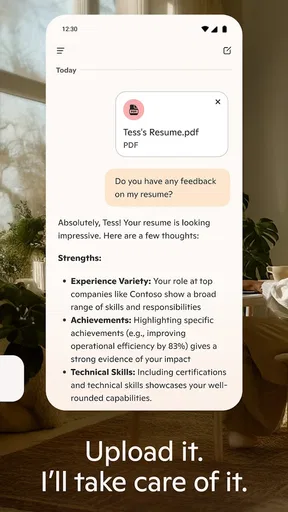
The app also shines in its ability to summarize lengthy documents. Gone are the days of sifting through paragraphs for key points. With Copilot, you get concise summaries that are spot-on. Plus, if you’re into data analysis, the Excel suggestions are worth their weight in gold. It helps you draft complex formulas and even visualizes data trends, which is super helpful for making informed decisions.
For everyday use, I would make the assistant part of a task rather than the whole task. Imagine having a busy morning and needing to send a clear update after checking a long document. I would ask for a short summary, use it to identify the points that matter, then return to the document to verify the details before writing the email. Copilot can help turn that verified information into a concise draft, but I would still check the final message for tone, accuracy, and anything sensitive. That handoff between assistance and personal review is where I see the most dependable time saving.
There is also a useful trade-off between speed and precision. A quick request can be enough for brainstorming, where several imperfect ideas may be more helpful than one polished answer. For anything that affects a decision, I would give clearer instructions and verify the response against the source. With Excel suggestions in particular, a formula that looks plausible is not automatically the formula you need: check the cells it refers to and test the result against a simple example before using it in important work. That extra check is faster than untangling a spreadsheet built around a mistaken assumption.
Make the answer easier to use
I get better results when I treat the first response as a conversation starter. Instead of asking for a finished document in one go, I might first request an outline, then ask for a section to be expanded or simplified. For an email, I can ask for a neutral draft and then make a separate request to make it warmer or more direct. Breaking a large job into small steps makes it easier to spot a misunderstanding before it spreads through the whole result.
It also helps to provide only the context needed for the task. A concise description of the audience and purpose can be more useful than a long, unfocused prompt. When working from a document, name the material you want summarized and check that the answer stays within it; do not assume a fluent response is proof that every detail came from the source. I would avoid sharing material I am not comfortable placing into an assistant workflow, and I would keep confidential or high-stakes decisions under human review.
For people already working across Word, Excel, and Outlook, the appeal is easy to understand: help with drafting, summarizing, and formula ideas sits close to familiar work. Someone who mainly wants a general-purpose chat assistant, does not use Microsoft tools, or prefers to do writing and research without AI may get less value from this particular fit. A traditional search engine is still the better choice when I want to inspect sources directly, while a spreadsheet’s own controls are better for checking calculations than relying on a conversational explanation alone.
What to check when a workflow stalls
If a response is not useful, I would first make the request narrower and confirm that the source text or figures are actually available in the material I am working with. Then I would try again with a specific output in mind: a brief list of key points, a draft reply, or a formula suggestion with an explanation. If the task still feels stuck, I would split it into smaller pieces rather than repeatedly sending the same broad prompt.
Before assuming the app is responsible, I would also check the ordinary parts of the workflow: whether I am in the right document, whether it has finished loading, and whether I can complete the underlying task without the assistant. If the original file or spreadsheet is incomplete, Copilot cannot reliably repair missing facts by guessing. When the assistant’s answer conflicts with the source, the source wins; for calculations, I would independently check the result. These habits make troubleshooting straightforward without treating every weak answer as a technical fault.
Fit, cost, and what to expect
Microsoft Copilot is a free productivity app from Microsoft Corporation, with in-app purchases ranging from $9.99 to $199.99 per item. It is rated for Everyone and requires Android 8.0 or later. The current version is 30.0.431219001. Those details make it easy to try, but I would not assume that every capability has the same terms or availability just because the app itself is free; check the purchase prompt and what is included before committing to anything.
Its 4.7 average from around two million ratings, alongside over 50 million installs, suggests that many people have made it part of their routine, though popularity cannot tell you whether it fits your own work. I would judge it by a few practical tests: does it make a first draft quicker, does a summary help me find the right passage, and do its spreadsheet suggestions survive checking? If the answer is no, there is little reason to force it into the workflow.
Who will get the most from it
I think Copilot suits people who already spend time writing, reading, or working with spreadsheets and want help getting past a blank page or a pile of material. It is especially handy when the job has a clear starting point but still benefits from a second pass: reorganizing a rough note, finding a more suitable email tone, or exploring a formula before testing it. It is less compelling for someone who expects a fully autonomous assistant to make decisions, guarantee accuracy, or replace careful work in Word, Excel, or Outlook.
Compared with the usual alternatives, its strongest reason to be in my toolkit is the connection to Microsoft-oriented work rather than a promise that it can do everything better. A general chat app may feel more convenient for open-ended conversation, and a search service is more appropriate when the goal is to compare original sources. For editing, I may prefer direct changes in the document; for number-heavy work, I trust the spreadsheet and my own checks more than a polished explanation. Copilot earns its place when it reduces friction between those steps, not when it is treated as the final authority.
Smooth Sailing or Rough Seas?
Now, no app is without its quirks. While Microsoft Copilot is generally intuitive, there were moments when its suggestions didn’t quite hit the mark. It’s still learning, so sometimes it might offer a suggestion that feels a bit off. However, these instances were few and far between. It’s also worth mentioning that, like any AI, it’s only as good as the data you provide it, so make sure your inputs are clear and precise.
Another point to consider is the learning curve. While it’s designed to be user-friendly, diving into all its features might require a bit of patience. But trust me, once you get the hang of it, you’ll be zipping through tasks in no time.
Overall, Microsoft Copilot is an impressive addition to the Microsoft suite. It’s like having a personal assistant who’s always ready to lend a hand, whether you’re drafting a document or crunching numbers. So, if you’re looking to boost productivity and streamline your workflow, give Copilot a go. You might just find it’s the co-pilot you’ve been searching for.
Verdict
Strengths of Microsoft Copilot
- Seamlessly integrates with Microsoft 365.
- Enhances productivity with AI suggestions.
- User-friendly interface for all skill levels.
- Reduces repetitive tasks efficiently.
- Supports real-time collaboration.
Limitations of Microsoft Copilot
- Requires a Microsoft 365 subscription.
- Limited offline functionality.
- AI suggestions can be generic.
- Learning curve for new users.
- Occasional lag on older devices.
Other Releases by Microsoft Corporation
View All
Microsoft OneDrive
Productivity4.6

Microsoft OneNote: Save Notes
Productivity4.6

Link to Windows
Productivity4.0

Microsoft PowerPoint
Productivity4.8
Similar Picks in This Category
View All
Google Calendar
Google LLC4.6

Google Drive
Google LLC4.3

Google Assistant
Google LLC3.9
Microsoft OneDrive
Microsoft Corporation4.6

Samsung Calendar
Samsung Electronics Co., Ltd.4.1
Microsoft OneNote: Save Notes
Microsoft Corporation4.6
Frequently Asked Questions
What is Microsoft Copilot and how does it integrate with Office apps?
Microsoft Copilot is an AI-powered assistant designed to enhance productivity within Microsoft Office applications like Word, Excel, and PowerPoint. It offers features like content suggestions, data analysis, and task automation, seamlessly integrating into the user interface to provide contextual assistance and streamline workflows.
Is Microsoft Copilot secure to use with sensitive data?
Microsoft Copilot is built with robust security measures to protect user data, adhering to Microsoft's high standards of data privacy and compliance. It uses encrypted channels to process information and operates within the secure environments of Microsoft 365, ensuring that sensitive data remains protected.
Can Microsoft Copilot understand multiple languages?
Yes, Microsoft Copilot supports multiple languages, allowing users to interact in their preferred language. This feature enhances accessibility and usability across different regions, making it a versatile tool for global teams collaborating across languages within the Microsoft Office suite.
How does Microsoft Copilot improve productivity for users?
Microsoft Copilot boosts productivity by automating repetitive tasks, providing smart suggestions, and offering insights based on data patterns. It helps users focus on more strategic work, reduces manual errors, and increases efficiency by handling routine tasks and providing real-time assistance.
What devices and operating systems are compatible with Microsoft Copilot?
Microsoft Copilot is compatible with devices running Windows, macOS, iOS, and Android, ensuring seamless operation across desktops, laptops, tablets, and smartphones. It works within Microsoft 365 applications, requiring an active subscription to access its features across different platforms.
